Vous êtes sur un PC Windows 10 et vous voulez préparer une clé USB qui démarre sur Linux, que ce soit pour l’essayer sans rien installer ou pour remplacer votre système. C’est bien ce cas que traite cet article : créer une clé USB bootable Linux sous Windows 10, à partir d’une image ISO téléchargée. Beaucoup de pages sur le sujet racontent l’inverse (fabriquer une clé d’installation Windows depuis Linux), ce qui n’est pas votre besoin ici.
La méthode tient en quatre gestes : télécharger l’ISO de la distribution, la graver sur la clé avec un outil adapté, démarrer le PC sur cette clé, puis choisir entre le mode live et l’installation. Les étapes sont détaillées ci-dessous, avec les réglages qui évitent la plupart des échecs.
Ce qu’il vous faut : ISO Linux, clé USB et PC Windows 10
Commencez par choisir votre distribution Linux. Ubuntu et Linux Mint sont les plus courantes pour un premier essai, car elles proposent un environnement graphique familier et démarrent en live USB sans configuration. Téléchargez l’image ISO uniquement depuis le site officiel du projet, en version 64 bits pour la grande majorité des PC récents.
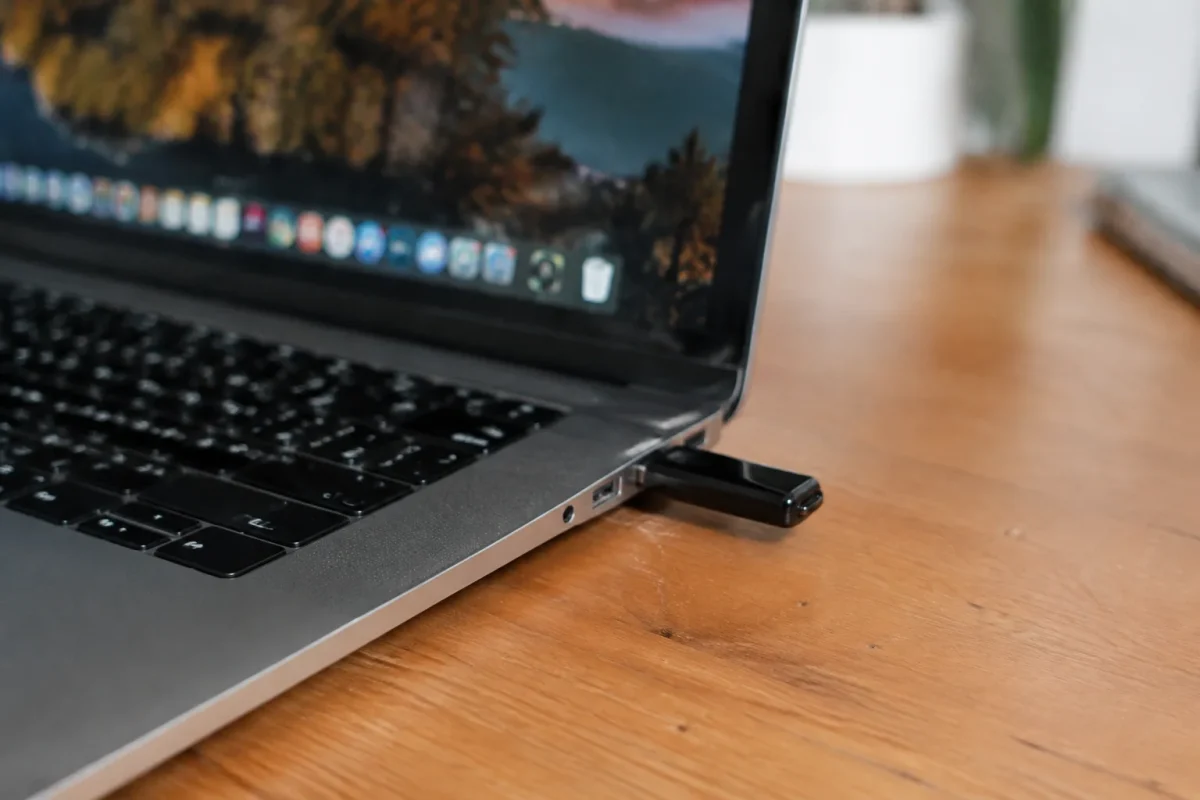
Côté matériel, prévoyez une clé USB d’au moins 8 Go, idéalement en USB 3.0 pour que le démarrage ne traîne pas. Le formatage efface toutes les données de la clé : copiez ailleurs ce qu’elle contient avant de continuer. Vous aurez aussi besoin d’un accès administrateur sur Windows 10 pour lancer l’outil de gravure.
Avant de graver : vérifier l’ISO et vider la clé
Chaque distribution publie une somme de contrôle SHA256 à côté du téléchargement. Dans PowerShell, la commande Get-FileHash chemin-de-l-iso calcule celle de votre fichier : les deux valeurs doivent être identiques. Une différence signale un téléchargement corrompu, source classique de clés qui refusent de démarrer.
Choisir l’outil de gravure : Rufus, balenaEtcher ou Ventoy
Copier l’ISO sur la clé comme un simple fichier ne produit pas une clé USB bootable. Il faut un logiciel qui prépare la partition et le secteur de démarrage. Trois outils gratuits dominent sous Windows 10, chacun avec son point fort.
| Outil | Point fort | À privilégier si… |
|---|---|---|
| Rufus | Réglages GPT/MBR, persistance, rapidité | vous voulez la méthode la plus directe |
| balenaEtcher | Interface minimale, vérification après écriture | vous préférez trois clics sans options |
| Ventoy | Plusieurs ISO sur une même clé | vous testez plusieurs distributions |
Créer la clé bootable Linux sous Windows 10 avec Rufus
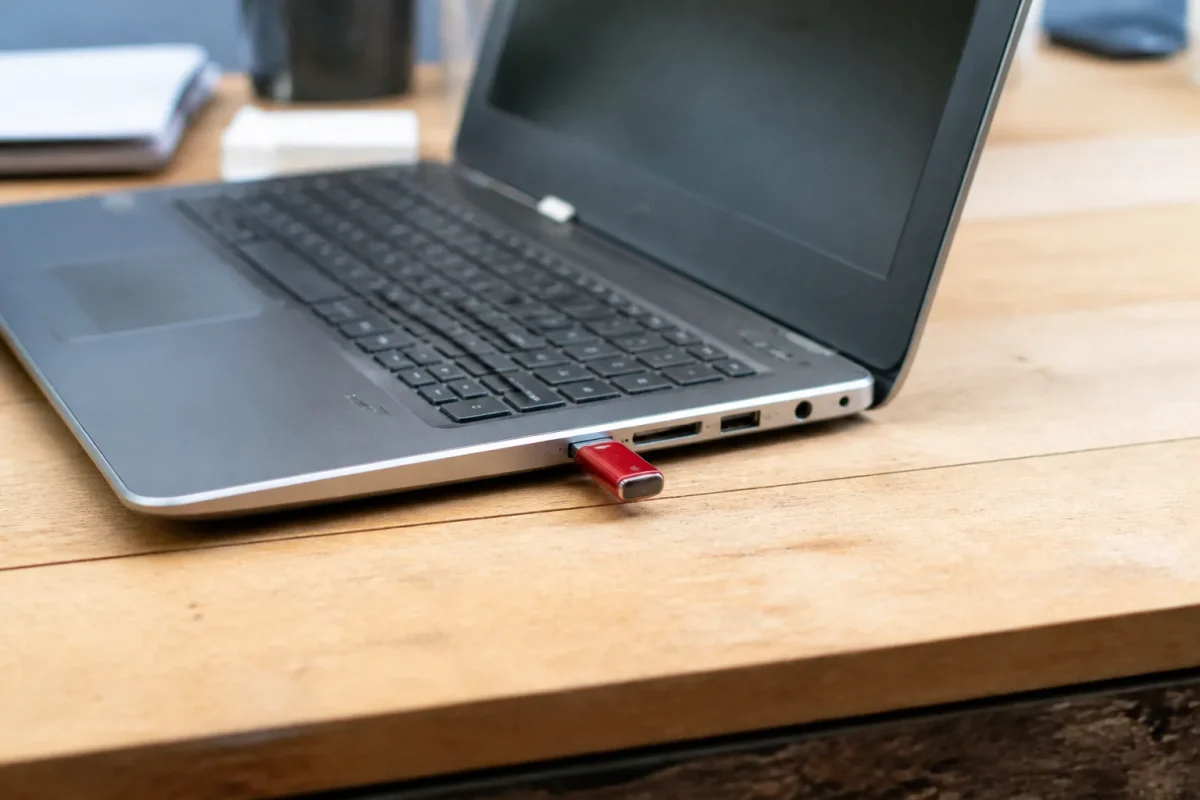
Rufus est une application portable : téléchargez-la depuis son site officiel, puis lancez-la sans installation. Branchez la clé USB, et Rufus la détecte dans le champ « Périphérique ». Vérifiez bien que c’est la bonne clé, car tout son contenu va disparaître.
Cliquez ensuite sur « SÉLECTION » et choisissez votre image ISO. Rufus règle alors automatiquement le schéma de partition, mais c’est le moment de le contrôler. Choisissez GPT pour un PC démarrant en UEFI (le cas de presque tous les ordinateurs récents) et MBR pour un vieux PC en BIOS hérité. Le système de fichiers proposé est en général FAT32, ce qui convient aux ISO Ubuntu et Linux Mint. Pour reformater d’autres supports, consultez notre guide pour formater vos périphériques de stockage en FAT32.
Si vous souhaitez conserver vos réglages et vos fichiers entre deux sessions live, Rufus propose un curseur de persistance pour les distributions compatibles comme Ubuntu. Cliquez sur « DÉMARRER » : Rufus peut demander le mode d’écriture, et le mode ISO recommandé fonctionne dans la plupart des cas. Le mode DD n’est utile que si l’image l’exige ou si le premier essai échoue. L’opération dure quelques minutes selon la clé.
Et avec Ventoy ou balenaEtcher ?
Avec balenaEtcher, le principe reste le même : « Flash from file », choix de la clé, « Flash ». Ventoy fonctionne autrement : vous l’installez une seule fois sur la clé, puis vous déposez vos fichiers ISO dedans par simple copier-coller. Au démarrage, un menu liste toutes les images disponibles, ce qui évite de reformater à chaque nouvelle distribution.
Clé branchée, redémarrez l’ordinateur et ouvrez le menu de démarrage au tout début de l’allumage. La touche dépend du fabricant : F12 chez Dell et Lenovo, Échap puis F9 chez HP, F8 ou Échap chez Asus, parfois F2 ou Suppr pour entrer dans les réglages du BIOS. Choisissez alors la ligne qui mentionne votre clé, de préférence celle précédée de « UEFI » si vous avez gravé en GPT.
Windows 10 complique parfois les choses avec son démarrage rapide, qui met le PC en veille profonde au lieu de l’éteindre vraiment. Maintenez la touche Maj en cliquant sur « Redémarrer », ou désactivez cette option dans les paramètres d’alimentation. Si le menu de démarrage n’apparaît toujours pas, passez par « Récupération » puis « Utiliser un périphérique » dans les paramètres de Windows.
Secure Boot, persistance et erreurs fréquentes
Ubuntu et Linux Mint sont signées pour fonctionner avec Secure Boot : en principe, vous n’avez rien à désactiver. Certaines distributions plus confidentielles, ou Ventoy lors du premier démarrage, demandent en revanche d’enregistrer une clé ou de couper Secure Boot dans le BIOS. Si le PC affiche une erreur de signature, c’est le premier réglage à vérifier.
Quand la clé n’apparaît pas dans le menu ou que le démarrage échoue, les causes sont presque toujours les mêmes :
- un schéma de partition qui ne correspond pas au mode du PC (MBR sur un PC en UEFI, ou l’inverse) ;
- une ISO corrompue, que la somme de contrôle aurait signalée ;
- un port USB défaillant, à remplacer par un autre, de préférence directement sur la carte mère ;
- une clé de mauvaise qualité, qui se grave sans erreur mais ne démarre pas.
Refaire la gravure avec un autre mode (ISO puis DD dans Rufus) règle une bonne partie des cas restants. Si rien ne change, essayez une autre clé avant de soupçonner le PC.
Essayer Linux en live ou lancer l’installation
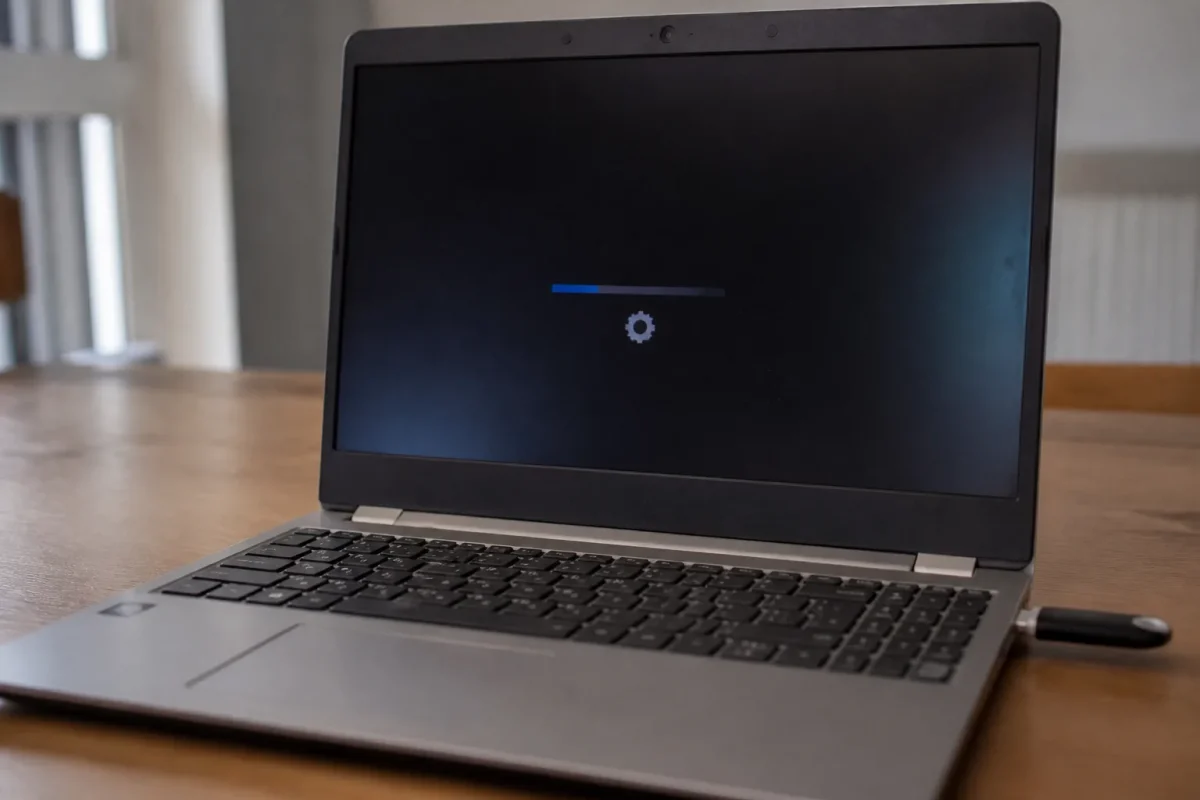
Au démarrage sur la clé, la distribution affiche un menu. Pour Ubuntu, « Try or Install Ubuntu » ouvre un écran où vous choisissez entre « Essayer » et « Installer ». Le live USB charge le système en mémoire sans toucher à votre disque dur, ce qui permet de tester le matériel (Wi-Fi, son, écran) avant de s’engager.
Si l’essai vous convainc, lancez l’installation depuis l’icône du bureau live. Le programme propose de garder Windows 10 à côté de Linux (double démarrage) ou d’effacer le disque. Sauvegardez vos documents avant cette étape, car un mauvais choix de partition peut supprimer vos données. Une fois l’installation terminée, retirez la clé quand le système vous le demande : votre PC démarrera désormais sur Linux ou affichera le choix entre les deux systèmes.