Vous voulez garder une trace de ce qui s’affiche sur votre écran, un message d’erreur, une page web ou un réglage précis, sans installer quoi que ce soit ? Windows 10 propose plusieurs façons natives de faire une capture d’écran, du simple raccourci clavier aux outils intégrés plus complets. Voici les méthodes qui fonctionnent, avec leurs particularités et leurs limites.
Méthodes rapides : raccourcis clavier pour capturer l’écran
La solution la plus directe reste le raccourci clavier. Aucun logiciel à ouvrir, aucun clic supplémentaire : une simple combinaison de touches suffit pour obtenir un screenshot. Chaque raccourci a toutefois un comportement différent selon ce que vous voulez capturer, plein écran, fenêtre active ou zone précise.
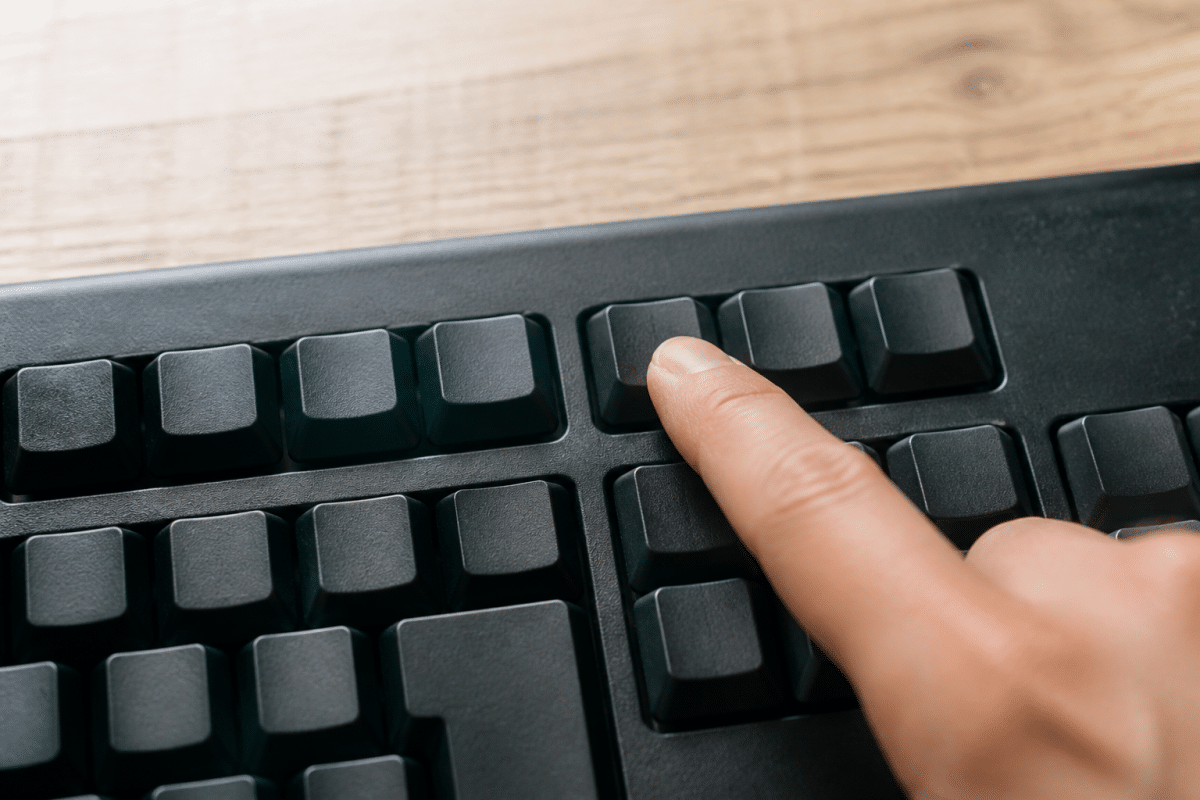
Touche Impr écran (PrtScn) : capture plein écran dans le presse-papiers
La touche Impr écran, parfois notée PrtScn ou PrtSc selon le clavier, capture l’intégralité de votre écran et copie l’image directement dans le presse-papiers. Elle ne sauvegarde rien sur le disque : il faut ensuite coller cette capture dans un logiciel comme Paint ou Word (Ctrl + V) pour pouvoir la conserver sous forme d’image PNG. C’est la méthode la plus ancienne, présente sur Windows depuis toujours.
Win + Impr écran : capture et enregistrement automatique
Pour éviter l’étape du collage, la combinaison Win + Impr écran fait exactement la même capture plein écran, mais l’enregistre automatiquement en fichier image. Vous verrez l’écran s’assombrir un instant, signe que la capture a bien été prise. Le fichier atterrit directement dans un dossier Captures d’écran, sans action supplémentaire de votre part.
Win + Maj + S : ouverture de Capture d’écran et croquis
Ce raccourci est probablement le plus pratique au quotidien. Il ouvre un mode capture qui assombrit l’écran et vous permet de choisir précisément la zone à sélectionner : rectangle, forme libre, fenêtre entière ou écran complet. L’image obtenue part directement dans le presse-papiers, et une notification apparaît pour l’ouvrir dans l’application Capture d’écran et croquis si vous souhaitez l’annoter.
Alt + Impr écran : capturer uniquement la fenêtre active
Quand plusieurs fenêtres sont ouvertes et que seule celle au premier plan vous intéresse, Alt + Impr écran capture uniquement la fenêtre active, sans le reste du bureau ni les autres applications visibles. L’image part dans le presse-papiers, à coller ensuite où vous le souhaitez.
Où retrouver vos captures enregistrées
Les images prises avec Win + Impr écran se rangent automatiquement dans Ce PC > Images > Captures d’écran. Celles prises avec Impr écran seul ou Alt + Impr écran ne sont jamais enregistrées sur le disque : elles restent uniquement dans le presse-papiers jusqu’au prochain collage.
Utiliser Capture d’écran et croquis (Snip & Sketch) de Windows 10
Snip & Sketch est l’outil de capture le plus complet installé par défaut sur Windows 10. On l’ouvre via Win + Maj + S, depuis le menu Démarrer, ou en programmant un retard de capture de 3 ou 10 secondes, pratique pour capturer un menu contextuel qui disparaît au moindre clic. Une fois la zone sélectionnée, l’application s’ouvre avec des outils pour annoter directement l’image : stylo, surligneur, gomme et règle pour tracer des lignes droites.
Depuis cette fenêtre, vous pouvez enregistrer la capture en image PNG, la copier à nouveau dans le presse-papiers ou la partager immédiatement par e-mail ou vers une autre application compatible. C’est ce logiciel natif qui remplace progressivement l’ancien Snipping Tool, tout en restant compatible avec les mêmes usages de base.
Outil Capture d’écran classique (Snipping Tool)

Le Snipping Tool historique existe toujours sur Windows 10, accessible en tapant son nom dans la barre de recherche. Son fonctionnement est plus simple que Snip & Sketch : on clique sur Nouveau, on trace la zone à capturer, et l’image s’affiche dans une fenêtre avec des outils basiques de retouche, stylo, surligneur et gomme. On peut ensuite l’enregistrer ou la copier.
Cet outil convient pour des besoins rapides, sans fioritures. Il reste utile si vous êtes habitué à son interface depuis les versions précédentes de Windows, mais Microsoft encourage désormais l’usage de Snip & Sketch, plus riche en fonctions.
Enregistrer, annoter et partager vos captures d’écran
Une fois la capture réalisée, plusieurs options s’offrent à vous selon l’usage prévu. Pour un simple envoi par messagerie, le collage direct dans le presse-papiers suffit souvent, sans passer par une sauvegarde sur le disque. Pour conserver l’image durablement, l’enregistrement en fichier PNG dans le dossier Captures d’écran reste la solution la plus fiable, car ce format garde une bonne qualité sans compression destructrice.
Quand la capture nécessite d’ajouter des repères visuels, une flèche, un cadre autour d’une zone importante ou un texte explicatif, Snip & Sketch permet de retoucher l’image sans quitter l’application. Le bouton de partage intégré autorise ensuite un envoi direct vers une autre application installée sur l’ordinateur, sans étape intermédiaire d’enregistrement manuel.
| Raccourci clavier | Résultat | Enregistrement |
|---|---|---|
| Impr écran | Plein écran | Presse-papiers uniquement |
| Win + Impr écran | Plein écran | Fichier automatique |
| Win + Maj + S | Zone, fenêtre ou écran au choix | Presse-papiers, à enregistrer ensuite |
| Alt + Impr écran | Fenêtre active | Presse-papiers uniquement |
Autres options : Xbox Game Bar et logiciels tiers

Pour les captures réalisées en jeu, la Xbox Game Bar, accessible via Win + G, propose son propre bouton de capture d’écran, pensé pour ne pas interrompre l’application en cours. Elle enregistre les images dans un dossier Vidéos > Captures dédié, séparé de celui des captures classiques, et gère aussi l’enregistrement de courtes séquences vidéo.
Si les outils natifs de Windows 10 ne suffisent pas pour des besoins avancés, annotations poussées, capture de pages web défilantes ou retouche approfondie, des logiciels tiers comme Lightshot, Greenshot ou Snagit complètent l’offre. Ils restent toutefois facultatifs : pour la grande majorité des usages, un raccourci clavier associé à Snip & Sketch couvre déjà l’essentiel des besoins courants.